OCR PDF to text: free and paid PDF OCR tools (2026)
Turn scanned PDFs into searchable text: Adobe online OCR, Google Docs, Mac Live Text, PDF24, OCRmyPDF, Tesseract, ABBYY & more. Privacy notes. Nov 2026.
Updated · Disclosure: we make Pith, and it is on this list. Every other tool is described as fairly as we can — including where it does the job better.
The short answer
To get text out of a scanned PDF for free, use Adobe's online OCR (no sign-in needed to run it; it returns a searchable PDF), PDF24 (free, unlimited, servers in Germany, files deleted after an hour) or Google Drive (open the PDF with Google Docs; Google names a 2 MB limit). For a few lines, Live Text in Preview on a Mac or PowerToys Text Extractor on Windows copies text straight from the screen. If the document is confidential, don't upload it: OCRmyPDF (open source, built on Tesseract) or PDF24 Creator on Windows run on your own computer. For regular, heavy OCR with editing, ABBYY FineReader PDF and Adobe Acrobat Pro are the established paid options. Pith (which we make) reads PDF links you save by text recognition and adds them to a cited wiki — it is not a converter and has no file upload for saves.
A PDF can contain text, or just a picture of text. A scanned contract, a photographed handout or an old report from an archive usually looks fine on screen but can't be searched, copied or read aloud, because there is no text in it — only pixels. Optical character recognition (OCR) fixes that: it reads the image, recognises the letters and adds a text layer, or gives you the text as a separate file. This guide compares ten ways to OCR a PDF to text in November 2026: free online tools, functions already built into your operating system, open-source software that runs on your own computer, two paid desktop products, and Pith, which we make. For each we say what you get, what it costs and where your document goes — the question people forget to ask before they upload a contract.
All tools at a glance
| Tool | Kind | What you get | Free | Paid from (Nov 2026) |
|---|---|---|---|---|
| Adobe Acrobat online OCR | Online | Searchable PDF | Yes | Acrobat Pro €23.79/month |
| Google Drive / Google Docs | Online | Editable Google Doc | Yes | — |
| macOS — Live Text in Preview | Built into OS | Copied text | Yes | — |
| Windows — PowerToys Text Extractor | Desktop utility | Copied text | Yes | — |
| PDF24 (online tool and PDF24 Creator) | Online + Windows desktop | Searchable PDF (also PDF/A) | Yes | — |
| OCRmyPDF | Open source, local | Searchable PDF/A | Yes | — |
| Tesseract | Open-source engine | Text, hOCR, PDF and more | Yes | — |
| ABBYY FineReader PDF | Paid desktop | Searchable/editable documents | 7-day trial | €69/year (Mac), €99/year (Windows) |
| Adobe Acrobat Pro | Paid desktop + online | Searchable/editable PDF | Trial | €23.79/month (annual) |
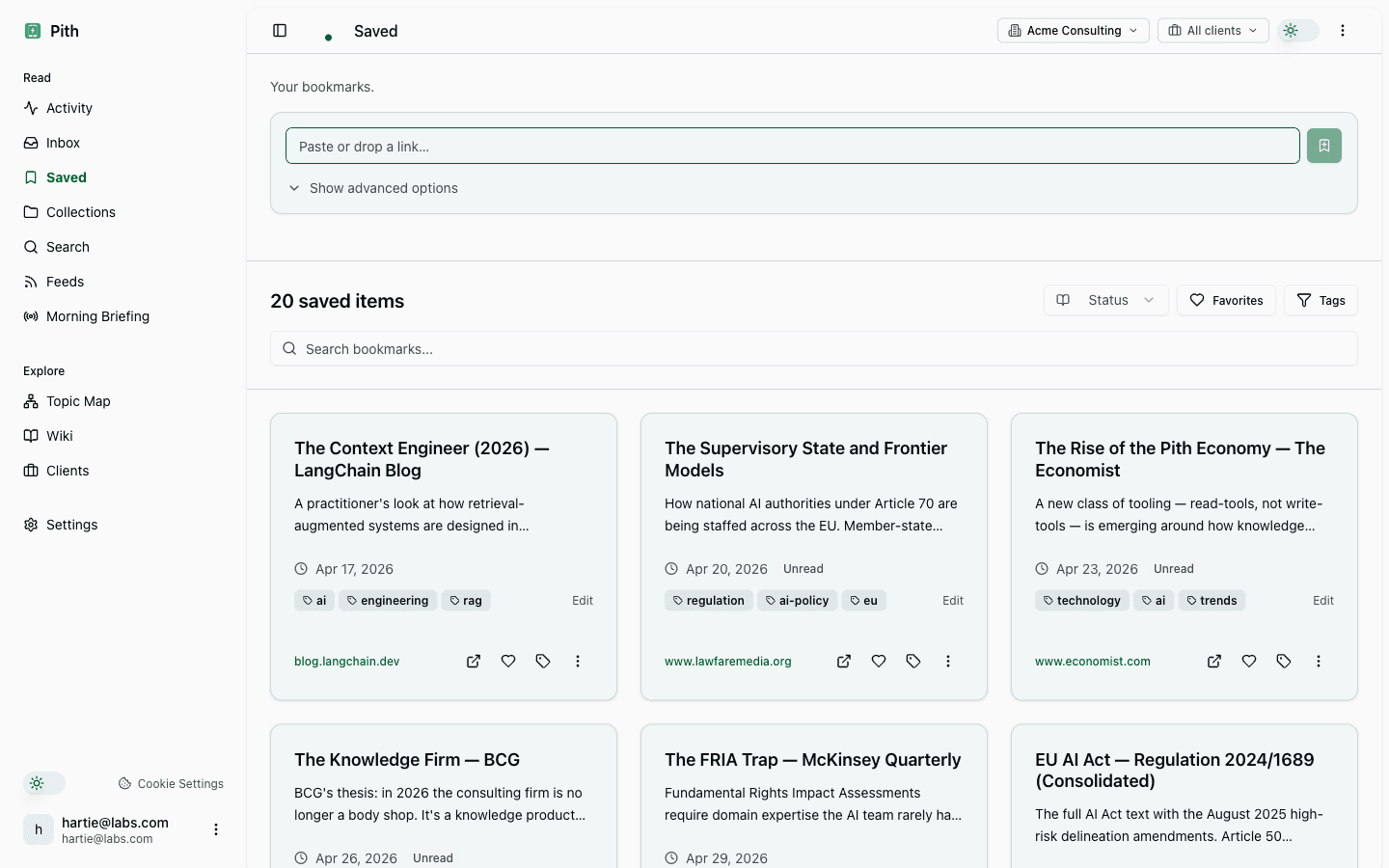
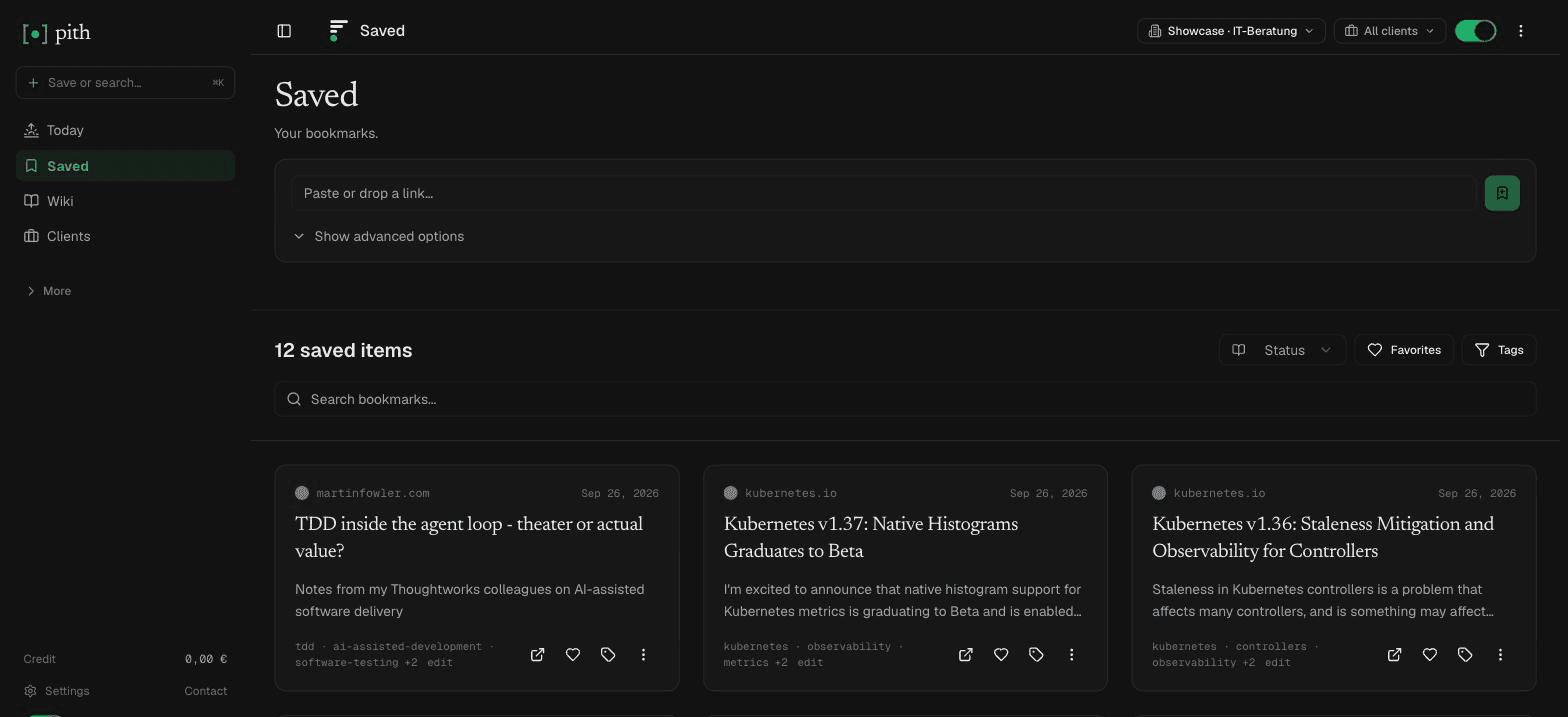
| Pith | Reading memory | Cited wiki from PDF links | Free to save and read | 1 ct per page |
How we chose
- Grouped by where the recognition happens: online (your file goes to a server), built into your system, open source on your own machine, paid desktop software. That decides both convenience and privacy.
- Every capability and price was checked on the vendor's own page on 8 November 2026. Adobe, ABBYY and PDF24 showed euro prices to us from Germany; we quote them as shown.
- We left out tools whose free limits or prices we couldn't confirm on their own pages that day.
- OCR quality depends more on the scan than on the tool: resolution, contrast, straight pages and a common font matter more than brand names. We say where a tool is known for layout, tables or many languages, based on the vendor's own description.
- We make Pith and list it last. It reads PDFs you save as links, for your reading memory — it doesn't hand you back a converted file.
Does my PDF need OCR at all?
Try this first: open the PDF and search for a word you can see on the page, or try to select a sentence. If the search finds it and the text highlights line by line, the PDF already has a text layer — you don't need OCR, you can copy the text or export it. If nothing is found, or the whole page gets selected like a picture, it's a scan and needs text recognition.
Some PDFs are mixed: a typed report with scanned appendices, or a scan that was OCR'd badly years ago. Good OCR tools can skip pages that already have text or redo a poor text layer; OCRmyPDF, for example, has options for both.
Which PDF OCR tool for which situation?
The quickest way to choose is by the job and by how sensitive the document is:
- One public or harmless document, quickly: Adobe's free online OCR, PDF24 online or Google Docs.
- A few lines from a scan or screenshot: Live Text in Preview (Mac) or PowerToys Text Extractor (Windows) — copy straight to the clipboard.
- Confidential documents (contracts, medical, HR, client material): local tools only — OCRmyPDF, Tesseract, PDF24 Creator on Windows, or paid desktop software.
- Hundreds of scans, an archive or a recurring workflow: OCRmyPDF scripted in a folder, or ABBYY FineReader PDF / Acrobat Pro if you need a graphical tool and editing.
- Research PDFs you want to remember and cite later, not convert: a reading memory such as Pith, which reads the PDF link when you save it.
The tools, one by one
- 1
Adobe Acrobat online OCR
Visit siteAdobe's free browser tool turns scanned documents, image-only PDFs and photos with text into searchable PDFs. Adobe says it keeps the original layout, fonts and formatting, handles multi-page PDFs and supports English, German, Spanish, French, Portuguese and more. You can run it without signing in; signing in lets you save and download the result. Files are handled on Adobe servers and deleted unless you sign in to save them, per Adobe.
Pros
- Free, in any browser, no installation.
- Searchable PDF that keeps the look of the original.
- German among the supported languages.
Cons
- Your file goes to Adobe's servers.
- Download of the result is tied to signing in.
Best for: A quick, good-looking searchable PDF from a non-confidential scan.
Pricing: Free online. Acrobat Pro (which includes turning scans into editable PDFs) costs €23.79/month with an annual commitment in Germany, incl. VAT (November 2026).
- 2
Google Drive / Google Docs
Visit siteUpload the PDF to Google Drive, right-click → Open with → Google Docs, and Google converts it into an editable document with the recognised text. It works for PDFs (multi-page too) and JPEG, PNG and GIF images. Google's help page says the file should be no larger than 2 MB and the text at least 10 pixels high; bold, italics, font size and line breaks usually survive, but lists, tables, columns and footnotes probably won't.
Pros
- Free with any Google account.
- Text ends up in an editable document you can share.
Cons
- Small file limit (2 MB, per Google).
- Tables and columns are not recognised as such.
- The document is stored in your Google Drive.
Best for: Getting editable text from a short scan when you already work in Google Drive.
Pricing: Free with a Google account.
- 3
macOS — Live Text in Preview
Visit siteOn a Mac, Preview recognises text in photos and scanned PDFs with Live Text. Hold the pointer over the text, drag to select it, right-click and choose Copy Text; if selection doesn't work, switch on Tools → Text Selection. You can also translate, look up or search the selected text. Apple notes that Live Text is not available in all regions and languages.
Pros
- Built in, on your own computer — nothing is uploaded.
- Instant for a paragraph or a page.
Cons
- Copies text; it doesn't save a searchable PDF.
- One selection at a time — not for long documents.
Best for: Mac users who need a quote or a few paragraphs from a scan or a photo.
Pricing: Free (part of macOS).
- 4
Windows — PowerToys Text Extractor
Visit siteText Extractor is part of Microsoft's free PowerToys utilities. Press Win+Shift+T, drag a box over any part of the screen — an open PDF, an image, a video — and the recognised text lands in the clipboard. It uses the OCR language packs installed in Windows; Microsoft recommends proofreading the result.
Pros
- Works on anything visible on screen.
- Runs locally.
Cons
- Needs PowerToys installed and the right OCR language pack.
- Screen area by screen area — not a whole-document converter.
Best for: Windows users who need a few lines out of a scanned PDF or an image.
Pricing: Free (Microsoft PowerToys).
- 5
PDF24 (online tool and PDF24 Creator)
Visit sitePDF24, made by geek software GmbH in Germany, offers a free OCR tool in the browser with no registration, no usage limit and 100+ recognition languages. It can straighten pages, remove artefacts and save as PDF/A for archiving. According to PDF24, files are processed on servers in Germany over encrypted connections and deleted automatically after one hour. PDF24 Creator, the free Windows desktop software, offers the same OCR offline.
Pros
- Free and unlimited, no account.
- Servers in Germany; files deleted after an hour, per PDF24.
- Offline option for Windows with PDF24 Creator.
Cons
- The desktop version is Windows only.
- The online tool still means uploading your file.
Best for: German-speaking users who want a free, no-account OCR — and a local option for sensitive files on Windows.
Pricing: Free (online and PDF24 Creator).
- 6
OCRmyPDF
Visit siteAn open-source command-line tool (MPL-2.0) that adds a text layer to scanned PDFs using Tesseract, producing searchable PDF/A by default. It places the text accurately under the image, keeps the original image resolution, can deskew and clean pages, supports 100+ languages through Tesseract, uses several CPU cores and handles files with thousands of pages. It runs on Linux, macOS, Windows, FreeBSD and in Docker, and processes data locally.
Pros
- Everything stays on your machine.
- Scriptable for folders and archives.
- Valid, searchable PDF/A output that keeps the original look.
Cons
- Command line — needs some technical confidence to install and run.
- Recognition quality is Tesseract's: very good on clean scans, weaker on poor images or handwriting.
Best for: Privacy-conscious users and teams who OCR many PDFs and want a free, reliable, local pipeline.
Pricing: Free, open source (MPL-2.0).
- 7
Tesseract
Visit siteThe open-source OCR engine (Apache 2.0) under many other tools, OCRmyPDF included. It recognises 100+ languages out of the box and outputs plain text, hOCR (HTML), PDF, invisible-text-only PDF, TSV, ALTO and PAGE. Tesseract reads images such as PNG, JPEG and TIFF — not PDFs directly — so you convert the pages to images first, or use OCRmyPDF, which does that for you.
Pros
- Free, local, widely used.
- Many output formats for further processing.
Cons
- No direct PDF input.
- A command-line engine, not an app.
Best for: Developers and technical users who build their own OCR workflow.
Pricing: Free, open source (Apache 2.0).
- 8
ABBYY FineReader PDF
Visit siteLong-established desktop software for OCR and PDF work, for Windows and Mac. It converts scans into searchable and editable documents and adds PDF editing. ABBYY sells single-seat licences for individuals by subscription; a 7-day trial needs no payment.
Pros
- Local desktop software — documents stay on your computer.
- Full PDF editing alongside OCR.
- Mac version available.
Cons
- Paid subscription.
- More than you need for an occasional scan.
Best for: Professionals who regularly convert difficult scans and want a graphical tool that runs locally.
Pricing: Windows: Standard €99/year (or €16/month), Corporate €165/year; Mac: €69/year; 7-day trial — prices as shown from Germany (November 2026).
- 9
Adobe Acrobat Pro
Visit siteThe full Acrobat desktop and online suite. On Adobe's German pricing page, "turn scans into editable PDF files" is listed for Acrobat Pro, along with editing, converting, signing and protecting PDFs. If your organisation already licenses Acrobat Pro, it is the obvious first stop for OCR.
Pros
- OCR plus full PDF editing in one tool.
- Often already licensed at work.
Cons
- Subscription priced for the whole suite.
- Scan conversion is listed for Pro, not for Standard.
Best for: People who edit PDFs regularly and need OCR as part of that work.
Pricing: €23.79/month with an annual commitment, incl. VAT, as shown from Germany; free trial (November 2026).
- 10
Pith
Visit sitePith (which we make) is a reading memory, not a converter. When you save a link to a PDF — a study, a regulator's report, a scanned paper — Pith reads it by text recognition, summarises it and lets it flow into your cited wiki next to the articles you saved, with every statement linked back to the file. You don't get a converted PDF back. Saves work by link only: there is no file upload for saves, and a PDF behind a login can't be fetched, so it stays a plain link. Very long PDFs are read up to a page limit. The one place you upload a PDF is the citation check, which rates the claims in your own draft against your saved sources.
Pros
- PDF reports become searchable and citable next to everything else you read.
- Search finds them by meaning, also across German and English.
Cons
- No converted file, no searchable PDF to download — use the tools above for that.
- No upload of local files for saving; only public PDF links.
- Hosted in Germany; text recognition runs through Mistral and AI processing through OpenAI in the US.
Best for: Analysts and consultants who read many PDF reports and want them in one cited, searchable memory.
Pricing: Free to save, read and search; 1 ct per PDF page recognised, 2 ct per save with AI, from a prepaid credit with €1 free credit every month. See /pricing.
Is it safe to OCR a PDF online?
Online OCR means your document is uploaded to someone else's server. The services in this list describe how they handle it — Adobe deletes files unless you sign in to save them, PDF24 deletes them after one hour and processes them in Germany — but the decision is yours, and for some documents the answer should simply be no.
A useful rule: if you wouldn't e-mail the document to a stranger, don't upload it to a free web tool. Contracts, personnel files, medical documents, client material under NDA and anything with personal data of others belong in a local tool — Live Text, PowerToys Text Extractor, OCRmyPDF, Tesseract, PDF24 Creator or a desktop product. If you process personal data for work, your organisation's data protection rules (and in the EU, the GDPR) apply to the upload too; ask your data protection officer which tools are approved.
How to get better OCR results
Most OCR errors come from the scan, not the software. Before you blame the tool:
- Scan at 300 dpi for normal text; small print benefits from more.
- Keep pages straight and evenly lit — shadows, folds and skew cost accuracy. Several tools can deskew automatically (PDF24, OCRmyPDF).
- Set the right recognition language; German umlauts and ß need German selected.
- Proofread names, numbers and amounts. OCR confuses 0 and O, 1 and l, and decimal separators — the errors that matter most in contracts and invoices.
- Tables and multi-column layouts are the hardest part; if layout matters, use a tool that keeps the original page (a searchable PDF) instead of plain text.
OCR, text extraction and AI — what's the difference?
Classic OCR recognises characters. Modern pipelines add layout analysis (columns, headings, tables, reading order), and AI models increasingly read documents end to end, including handwriting and complex tables. For most people the distinction matters less than the result: a searchable PDF if you want to keep the document, plain text if you want to reuse the words, structured data if you want tables in a spreadsheet. Our glossary entry on PDF extraction explains why getting clean text out of a PDF is harder than it looks.
If you want to listen to a scanned document rather than read it, OCR is the first step: a read-aloud function needs text. Our guide on how to have text read aloud covers the next step.
Where Pith fits
Pith is useful when the PDF is something you read for work and want to find again: an analyst report, a regulator's consultation paper, a scanned study. Save its link from the browser, the phone's share sheet or by e-mail forwarding; Pith recognises the text, writes a short summary and adds what it says to your wiki, with a numbered source pointing to the PDF. Later, search finds it by meaning — even if you remember it in English and it's in German. If you want the text or a searchable PDF as a file, use one of the tools above; Pith doesn't give one back.
FAQ
How do I convert a scanned PDF to text for free?
Use Adobe's free online OCR or PDF24 online for a searchable PDF, or open the PDF with Google Docs in Google Drive to get editable text (Google names a 2 MB limit). For a few lines, Live Text in Preview on a Mac or PowerToys Text Extractor on Windows copies the text directly.
Which PDF OCR tool works offline?
OCRmyPDF and Tesseract (open source, all major systems), PDF24 Creator (Windows), Live Text in Preview (Mac), PowerToys Text Extractor (Windows) and paid desktop software such as ABBYY FineReader PDF. All of them process the document on your computer.
Is online OCR safe for confidential documents?
It depends on the provider and the document. Uploading means the file goes to a third-party server, even if it's deleted afterwards. For contracts, personal data or client material, use a local tool or one your organisation has approved.
Can Adobe Acrobat do OCR?
Yes. Adobe's free online OCR tool makes scanned PDFs searchable in the browser, and Adobe lists turning scans into editable PDFs as an Acrobat Pro feature (€23.79/month with annual commitment in Germany, November 2026).
Why is my OCR result full of errors?
Usually because of the scan: low resolution, skewed or shadowed pages, or the wrong recognition language. Rescan at 300 dpi, straighten the pages, select the right language and proofread names and numbers.
Does Pith convert PDFs?
No. Pith reads PDF links you save by text recognition and adds them to your cited wiki and search, but it doesn't return a converted file, and there is no file upload for saves.
Sources (vendor pages we checked)
- Adobe — Acrobat online OCR (free)
- Adobe — Acrobat plans and prices (Germany)
- Google Drive Help — convert PDF and image files to text
- Apple — Live Text in Preview on Mac
- Microsoft Learn — PowerToys Text Extractor
- PDF24 — OCR PDF online
- PDF24 — PDF24 Creator
- OCRmyPDF — repository and features
- OCRmyPDF — documentation
- Tesseract OCR — repository
- ABBYY FineReader PDF — prices (Germany)
Last reviewed: 8 November 2026 · CC BY 4.0 · cite freely with attribution to Pith.